~/blog/homelab-media-server-jellyfin
Building a Home Media Server with Jellyfin and Proxmox
My family and I were paying for three different streaming services every month. Between Netflix, Disney+, and Prime Video, the bill added up to nearly €40 — and somehow, half the movies we actually wanted to watch weren’t on any of them.
This is the story of how a spare hard drive, an evening of tinkering, and a piece of open-source software called Jellyfin turned into our own personal Netflix.
Why Jellyfin?
I looked at Plex first — it’s the name everyone knows. But Plex has been steadily locking features behind a paywall and pushing their own ad-supported content into your library. Jellyfin is completely free, fully open-source, and does exactly what you want: serve your media files to any device with a clean interface, no strings attached.
No subscription. No telemetry phoning home. No “continue watching” suggestions for content I never asked for.
The Hardware
The server runs on my Proxmox homelab — a hypervisor I use for everything from DNS to monitoring. The media container gets 2 vCPUs and 2 GB of RAM, which is plenty for direct-play streaming (no transcoding needed for most modern devices).
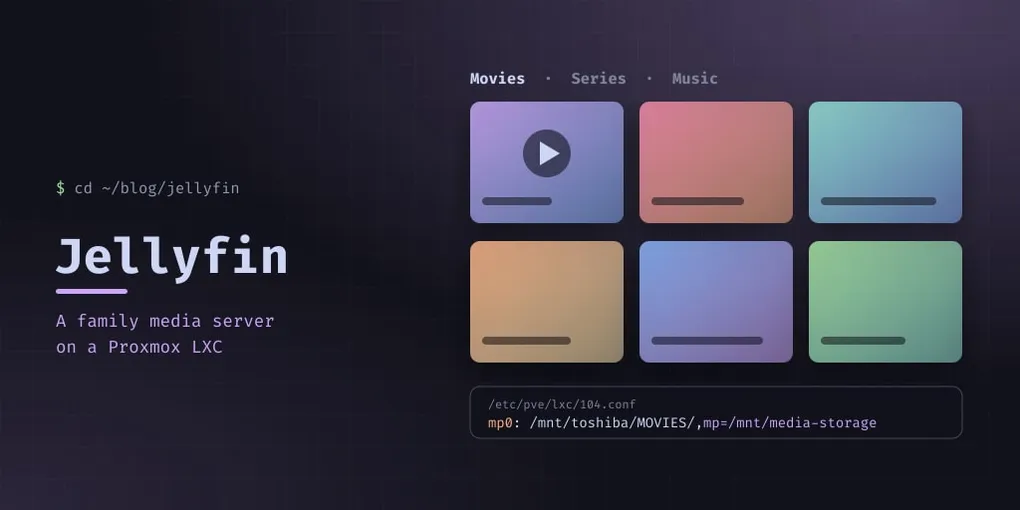
The real star is a 4 TB hard drive I’d been using as a cold backup. It’s not an SSD, but for sequential media reads it doesn’t need to be. The drive is physically connected to the Proxmox host over USB, formatted as NTFS, and mounted at /mnt/toshiba/MOVIES/ on the host. Rather than using NFS or virtio-9p (both of which add network or emulation overhead), I went with a simple bind mount — one line in the container configuration that maps the host directory directly into the container’s filesystem:
mp0: /mnt/toshiba/MOVIES/,mp=/mnt/toshiba-shared-moviesThis is the Proxmox LXC equivalent of mount --bind. The kernel maps the host directory straight into the container’s mount namespace with zero overhead — no network stack, no FUSE layer, no userspace daemon. The container sees it as a local directory at /mnt/toshiba-shared-movies/, Jellyfin and qBittorrent read and write to it directly, and it performs identically to a native disk.
Proxmox Host
  └── /mnt/toshiba/MOVIES/  (4 TB physical disk, NTFS, USB)
        bind-mounted into container (mp0)
          └── media-srv:/mnt/toshiba-shared-movies/
                └── MEDIA/
                      ├── (films, one folder per genre: action, scifi, comedy...)
                      ├── Series/      (TV shows by genre and season)
                      └── Animation/   (animated films)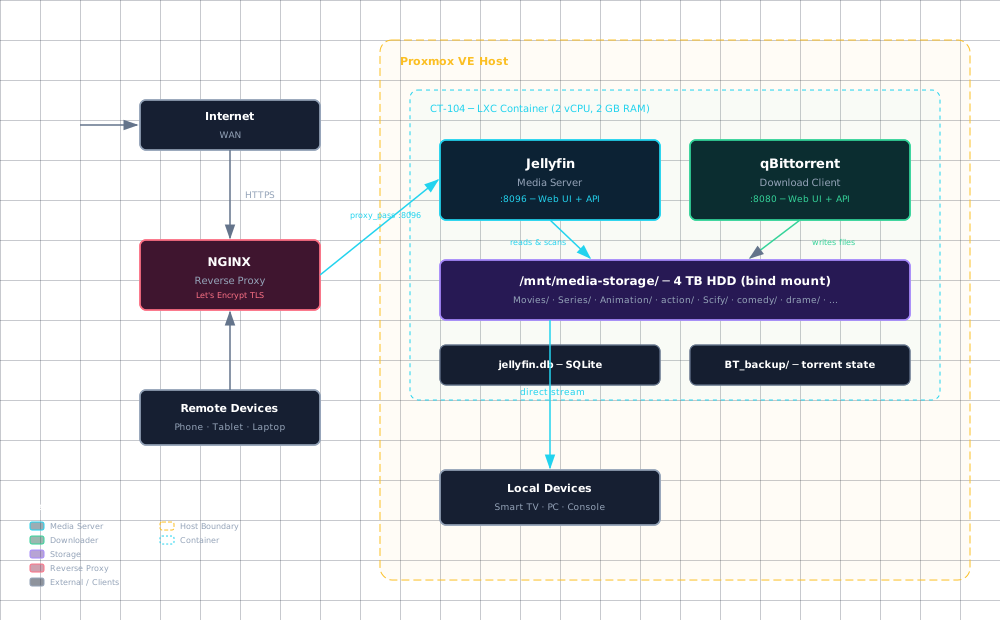
The Stack
The container runs two services, both managed by systemd:
Jellyfin (port 8096) is the frontend — it scans the media directories, downloads metadata and cover art from TMDB, and serves a beautiful web UI that works on phones, tablets, smart TVs, and browsers. It supports multiple user profiles, so each family member has their own watch history and favorites. Jellyfin stores its configuration and library state in a SQLite database at /var/lib/jellyfin/data/jellyfin.db — every library path, user profile, and playback position lives in that single file.
qBittorrent-nox (port 8080) handles the downloading side. It runs headless with its Web API exposed on port 8080, letting me add torrents remotely, set per-genre save paths, and monitor download progress. The API is straightforward — adding a torrent with a genre-specific save path is a single curl call:
curl -s -b /tmp/qb_cookies.txt \
  'http://localhost:8080/api/v2/torrents/add' \
  --data-urlencode "urls=magnet:?xt=urn:btih:..." \
  --data-urlencode "savepath=/mnt/toshiba-shared-movies/MEDIA/Scify"
When a download completes, qBittorrent leaves the file in the target folder and Jellyfin picks it up on the next library scan — no manual intervention needed.
Both services run inside a single unprivileged LXC container, isolated from the host but sharing the same kernel. The container is configured with nesting enabled (features: nesting=1), 2 GB of swap as a safety valve, and a startup order of 2 so it comes up after core infrastructure containers like DNS and the reverse proxy.
Network Path: From Internet to Your Screen
Here’s how a remote request reaches Jellyfin and serves a movie:
- External request hits
media.example.comon port 443 - NGINX reverse proxy (a separate container on the internal bridge
vmbr1) terminates TLS with a Let’s Encrypt certificate and proxies the request tohttp://media-srv:8096 - Jellyfin receives the request, checks the user’s auth token against
jellyfin.db, fetches the requested media metadata, and streams the file directly from/mnt/toshiba-shared-movies/ - On the local network, devices bypass the reverse proxy entirely — the Jellyfin app connects straight to the container’s internal IP on port 8096
The container sits on an internal bridge network (vmbr1, 10.99.99.0/24) with a DHCP reservation ensuring a stable IP. No port forwarding on the router, no dynamic DNS hacks — just the reverse proxy handling TLS termination and routing.
Jellyfin Internals: How Libraries Work
Jellyfin’s library system is worth understanding because it determines how your files show up in the UI. Each library is defined by a CollectionFolder row in the SQLite database with a JSON Data field that contains:
PhysicalLocationsList— array of absolute filesystem paths to scanPhysicalFolderIds— UUIDs of backing Folder itemsCollectionType—movies,tvshows,music, ormixed
When you trigger a scan (either from the Web UI or via the API), Jellyfin walks every path in PhysicalLocationsList, checks for new or modified files, and updates its internal index. The scan API endpoint is a simple POST:
curl -X POST "http://localhost:8096/Library/Refresh" \
  -H "X-Emby-Authorization: MediaBrowser Client=\"script\", Device=\"cli\", DeviceId=\"auto-scan\", Version=\"10.11.8\", Token=\"$TOKEN\""
Returns HTTP 204 on success. The scan runs asynchronously — you can trigger it and immediately get a response while Jellyfin works through the directories in the background.
On my setup there is one library per genre: eight film libraries — Action, Animation, Biographie, Comedy, Drame, Fantastique, Horor, Scify — each pointing at its own MEDIA/<genre>/ folder with CollectionType: movies, and four series libraries — Série-Comedy, Séries-Animation, Séries-Scify, Série-Anime-Japon — pointing at MEDIA/Series/<genre>/ with CollectionType: tvshows.
Each library maps to exactly one folder, so adding a genre means adding a library entry — the genre folders are not picked up on their own.
A Real Example
Here’s what the workflow looks like when someone asks “can we watch Dune?”
- I search for the torrent, add it to qBittorrent with the save path set to
/mnt/toshiba-shared-movies/MEDIA/Scify/ - qBittorrent downloads the file directly to the right genre folder
- I trigger a Jellyfin library scan — a single
curlPOST to the API - Two minutes later, Dune appears in the Jellyfin library with cover art, cast info, and subtitles
The whole process takes under five minutes, and once it’s in the library, it stays there forever. No licensing deals expiring. No “leaving soon” banners.
Family Access
Jellyfin supports per-user profiles with parental controls, so I set up accounts for each family member. The kids’ accounts only see age-appropriate content. Everyone gets their own watch history, favorites, and “continue watching” row.
Access from outside the house goes through a reverse proxy with Let’s Encrypt SSL. Inside the local network, it’s direct — open the app, pick a movie, press play.
Storage Organisation
Inside MEDIA/, the drive is organised by genre at the top level, with a Series/ subdirectory for TV shows following the standard Series/Genre/Show Name/Season XX/ convention. Jellyfin’s library configuration points at these folders, with an explicit CollectionType per library rather than relying on auto-detection.
At ~90% capacity with over 70 films and several complete series, I’ve got maybe a year before I need to think about adding another drive. But with 4 TB drives being cheap, that’s a problem I’m happy to have.
Security
The container is unprivileged — a Proxmox security feature that maps UID 0 inside the container to UID 100000 on the host, so even if an attacker escapes the container they land as an unprivileged user. The container runs with minimal installed packages (no X11, no desktop, no compilers), and has no direct internet exposure — all external access goes through the reverse proxy with HTTPS. Jellyfin runs under its own jellyfin service user, while the torrent client runs as root, and the bind mount is effectively read-only for Jellyfin (it only needs read access for streaming) while qBittorrent writes downloaded files.
The whole setup sits behind my existing CrowdSec intrusion prevention and centralized logging pipeline, so any unusual activity gets flagged immediately.
Was It Worth It?
Absolutely. The upfront time investment was maybe two evenings — most of it spent on file organisation, not software setup. Jellyfin installed in minutes via apt. The ongoing maintenance is near zero: a periodic apt upgrade and maybe moving files into the right folders after a download.
For the cost of electricity and a hard drive I already owned, my family has a media library that works on every screen in the house, never shows ads, and never removes content because a licensing deal expired.
If you’ve got a spare machine and a hard drive lying around, give Jellyfin a try. Your wallet — and your family’s movie nights — will thank you.