~/blog/headplane-headscale-web-ui
Headplane: a Web UI for Headscale
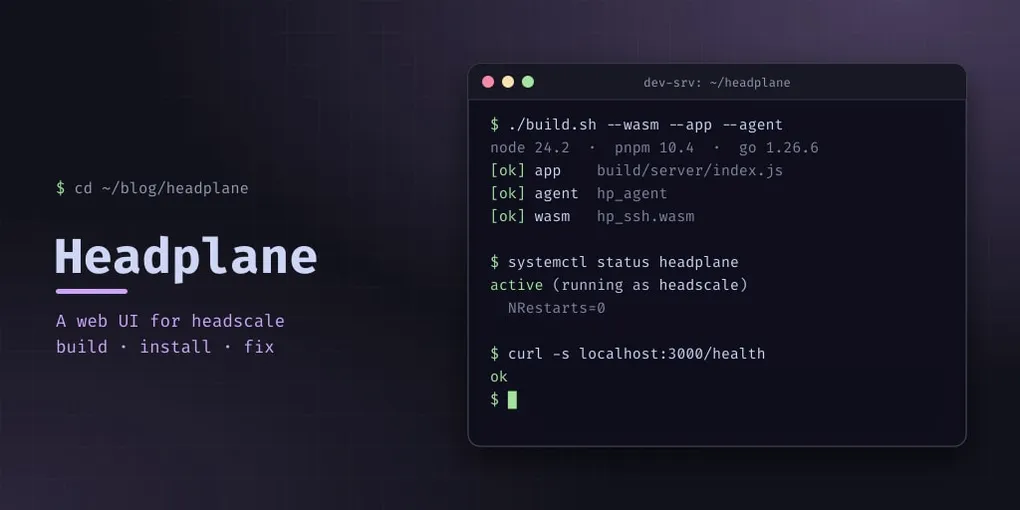
Headscale is the open-source control server for a self-hosted Tailscale-style network, and it is a CLI. That is fine until you want to see which nodes are online, register a device, or hand someone a pre-auth key without pasting long command output into a chat.
There was a web UI — headscale-ui — and it worked well, but it has not had a release since March 2026 and no commits since. Headplane is the maintained alternative, and it does more: nodes, routes, DNS, ACLs, pre-auth keys, plus an SSH terminal into nodes and a Go agent for the remote side.
It also has two failure modes that cost me an hour each, both of which are one line in a config file. So this is a build and install guide where the interesting part is the two things that go wrong.
What you get
Three artefacts from one build:
- the app — a React Router server that talks to the Headscale API
- the agent (
hp_agent) — a small Go binary placed on nodes to provide SSH and system information - the wasm — a terminal that runs in the browser
The agent and the wasm are optional. The app on its own already gives you a usable UI.
Check the requirements from the repo, not the docs
The published install documentation lagged behind the code when I built it. The requirements that actually mattered were in the repo:
| Component | Needs |
|---|---|
| node | ≥ 24.2 |
| pnpm | 10.4 |
| go | 1.26.6 |
The node requirement is the one that catches people: a distribution node (or the Debian package) is typically 20 or 22, and the build fails in a way that looks like a source error rather than a version error. Check package.json and the CI workflow in the repo rather than trusting a version table in a README — the repo is the authority, the docs are a snapshot.
Concretely: I built on a container that had node 20 and pnpm 9, and rather than change the system interpreter — which other services depend on — I installed the required versions into an isolated toolchain directory and built from there. The build machine’s node version should not be a decision that affects anything else.
Building
git clone https://github.com/tale/headplane && cd headplane
pnpm install
./build.sh --wasm --app --agent
It takes a few minutes; most of it is the Go build of the agent and the Tailscale libraries behind it. The Go build is the reason to give the build machine some RAM — doing this on a 1 GB container is an exercise in watching the OOM killer work.
Where it has to run, and as whom
Headplane has to reach the Headscale API, and it has to be able to make Headscale reload its configuration. Copy the build output to /opt/headplane and note where the node interpreter ended up if you installed an isolated one.
Now the first trap, and it is the whole reason this post exists.
Run the service as the headscale user. The obvious approach is to run it as its own user and bolt on a sudoers rule or a systemd capability so it can restart Headscale. Headplane avoids all of that: its integration.proc finds the Headscale process in /proc and sends it SIGHUP. It never calls systemctl. So if the service runs as the same user that owns the Headscale process, signalling is simply allowed — no sudo, no capabilities, no privilege escalation anywhere in the design.
That is a genuinely good decision by the author, and it is worth knowing before you “fix” it by adding permissions it does not need.
Which leads directly to the second trap: the config directory’s permissions. Running as headscale means every path in the service’s configuration has to be traversable by that user. Mine was root:root 0750, and the unit failed in a loop — start, exit, restart — with a message about the config file rather than about the directory it could not walk into. One chmod and it came up first time and has not restarted since.
Generalise it, because it catches people on every service of this shape: when a unit runs as a non-root user, check the directory permissions along the path, not just the file. A file can be world-readable and still be unreachable behind a directory that is not.
The API key
Headplane authenticates to Headscale with an API key, created on the control server:
headscale apikeys create --expiration 90dPut it in Headplane’s config, not in the browser. Which is a good moment to describe how the previous UI failed: its “API test did not succeed” error was an expired key stored in the browser’s localStorage. The server was healthy the whole time — /health returned 200, /api/v1/* returned 401 — and the fix was to issue a new key, not to touch the control server. If a UI tells you the API is down, curl the API before believing it.
Give the key an expiry and note it. A key that expires quietly takes the UI with it.
Putting it behind nginx
The UI is a web app, but the tailnet control endpoints are a different service on a different port, and you want them to keep working when the UI is down. Keep them separate:
location /admin {
    proxy_pass http://127.0.0.1:3000;
}

# Tailscale clients talk to these directly
location /key        { proxy_pass http://127.0.0.1:8080; }
location /machine/   { proxy_pass http://127.0.0.1:8080; }
location /api/       { proxy_pass http://127.0.0.1:8080; }
location /health     { proxy_pass http://127.0.0.1:8080; }
Serving the UI under a path rather than a subdomain means one certificate and no extra DNS record. Check the dashboards you rely on: /health returning 200 is the check clients care about, and it should not depend on the UI process.
Config editing: leave it off
Headplane can edit Headscale’s configuration from the UI, and it is off by default for a good reason: Headscale’s config.yaml is 0640 root:headscale, so writing to it means changing its permissions to something Headplane can write. Turning that on moves your control server’s configuration into a web form, protected by whatever your UI’s auth is.
Mine stays off. Editing the file by hand is slower and considerably more boring, which in this case is the feature.
Pitfalls
- Read the requirements from the repo. Node ≥ 24.2, pnpm 10.4, go 1.26.6 when I built it. A too-old node fails as a cryptic build error.
- Run as the
headscaleuser. TheSIGHUPintegration needs no privileges if you do. - Check directory permissions, not just file permissions. A
0750root-owned config directory produced an endless restart loop. - Build the UI elsewhere if the host is small. The Go build wants memory.
- An expired API key looks identical to a down server. Issue a new key, then curl
/healthto confirm. - Keep
/healthand the control endpoints independent of the UI. Your existing nodes should not care that the UI is restarting.